들어가며
GitHub 프로필 README는 개발자의 첫인상을 결정하는 중요한 공간입니다. 많은 개발자들이 자신의 기술 스택, 프로젝트, 통계를 표시하지만, 기술 블로그를 운영한다면 최신 글을 자동으로 보여주는 것도 좋은 방법입니다.
이번 글에서는 GitHub Actions와 RSS Parser를 활용해 Tistory 블로그의 최신 글을 GitHub 프로필에 자동으로 표시하는 방법을 처음부터 끝까지 단계별로 알아보겠습니다.
최종 결과물
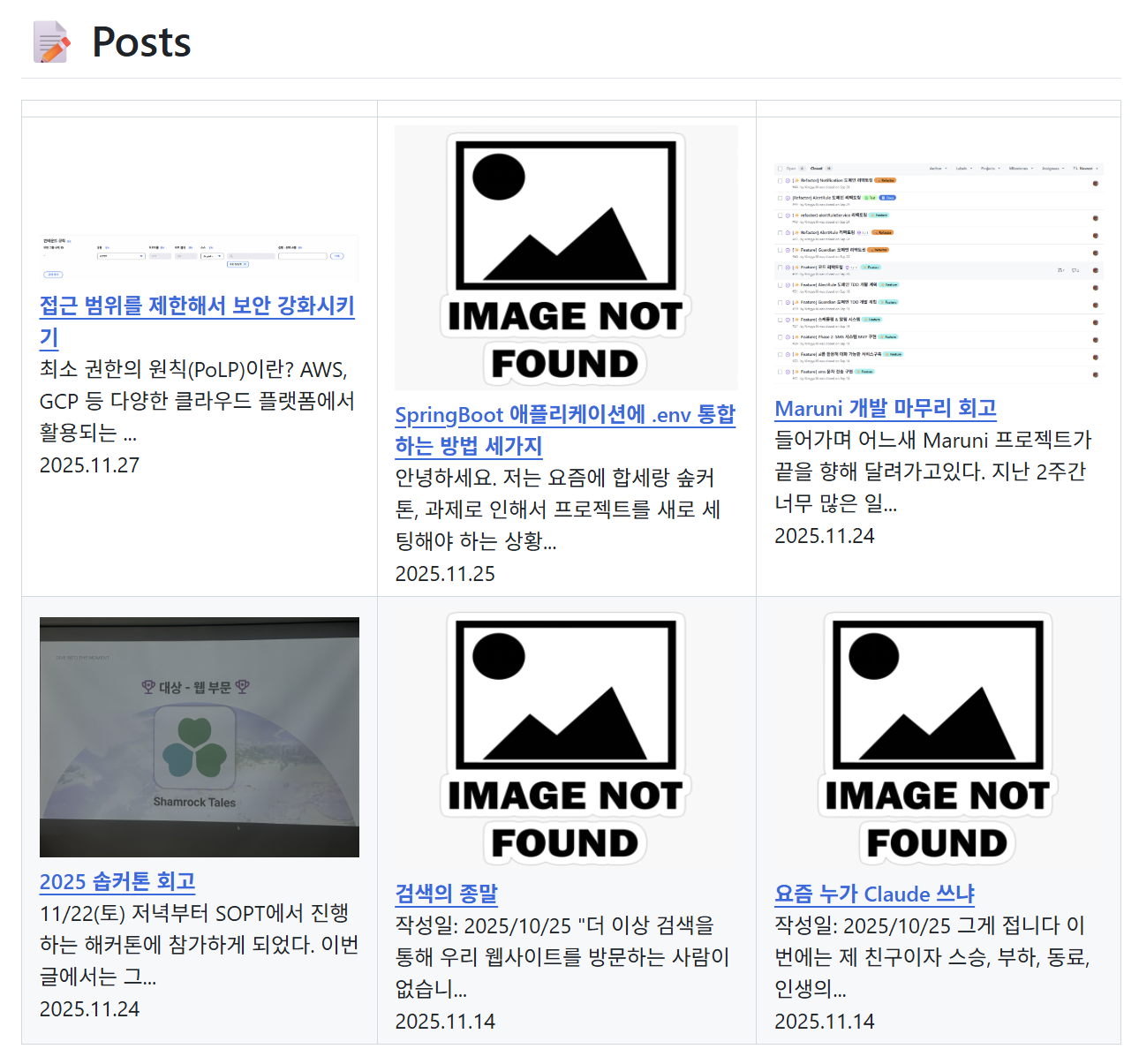
완성하면 이런 형태로 표시됩니다:
- 썸네일 이미지 (300x200 고정 크기)
- 글 제목 (클릭 가능한 링크)
- 내용 미리보기 (50자)
- 작성 날짜
- 3열 2행 테이블 형태로 최신 6개 글 표시
- 매일 자동 업데이트 ⚡
사전 준비
- GitHub 계정
- Tistory 블로그
- Git 설치
- Python 3.10 이상 설치
따라하기
STEP 1: GitHub 프로필 저장소 클론하기
GitHub 프로필 README는 {username}/{username} 형태의 특수한 저장소입니다.
# 본인의 username으로 변경하세요
git clone <https://github.com/your-username/your-username.git>

# 저장소로 이동
cd your-username
💡 프로필 저장소가 없다면? GitHub에서 본인의 username과 동일한 이름의 저장소를 먼저 생성하세요.
STEP 2: 작업 브랜치 생성
main 브랜치에 바로 작업하지 않고 별도 브랜치를 만들어 테스트합니다.
git switch -c add-blog-posts
STEP 3: 디렉토리 구조 생성
# Windows (Git Bash)
mkdir -p .github/workflows
mkdir -p .github/scripts

# macOS / Linux
mkdir -p .github/{workflows,scripts}
STEP 4: Python 스크립트 작성
블로그 RSS를 파싱하여 README를 업데이트하는 스크립트를 작성합니다.
# 파일 생성
touch .github/scripts/update_blog.py

# 에디터로 열기 (VS Code 예시)
code .github/scripts/update_blog.py
아래 코드를 복사하여 붙여넣습니다:
import feedparser
import re
from datetime import datetime

def clean_html(raw_html):
    """HTML 태그 제거하고 텍스트만 추출하는 함수"""
    # HTML 태그 제거를 위한 정규표현식
    cleanr = re.compile('<.*?>')
    cleantext = re.sub(cleanr, '', raw_html)

    # 줄바꿈과 연속된 공백을 하나의 공백으로 치환 (테이블 깨짐 방지)
    cleantext = re.sub(r'\\\\s+', ' ', cleantext)
    return cleantext.strip()

def get_thumbnail(entry):
    """RSS 엔트리에서 썸네일 이미지 URL을 추출하는 함수"""

    # 우선순위 1: RSS의 media:thumbnail 태그 확인
    if hasattr(entry, 'media_thumbnail'):
        return entry.media_thumbnail[0]['url']

    # 우선순위 2: enclosure 태그에서 이미지 타입 확인
    if hasattr(entry, 'enclosures') and entry.enclosures:
        for enclosure in entry.enclosures:
            if enclosure.get('type', '').startswith('image/'):
                return enclosure.get('url')

    # 우선순위 3: 본문(description)에서 첫 번째 이미지 추출
    if hasattr(entry, 'description'):
        img_match = re.search(r'<img[^>]+src="([^"]+)"', entry.description)
        if img_match:
            return img_match.group(1)

    # 모두 없을 경우 기본 이미지 반환
    return "<https://github.com/user-attachments/assets/9ffcad01-a362-4ad3-b3eb-f648be5d75de>"

def format_date(date_str):
    """RSS의 날짜를 YYYY.MM.DD 형식으로 변환하는 함수"""
    try:
        # RSS 표준 날짜 형식 파싱
        date_obj = datetime.strptime(date_str, '%a, %d %b %Y %H:%M:%S %z')
        return date_obj.strftime('%Y.%m.%d')
    except:
        # 파싱 실패 시 원본 그대로 반환
        return date_str

def create_blog_table(feed_url, max_posts=6):
    """RSS 피드에서 블로그 글을 가져와 3x2 테이블 형태의 마크다운 생성"""

    # RSS 피드 파싱
    feed = feedparser.parse(feed_url)
    entries = feed.entries[:max_posts]  # 최신 글만 가져오기

    # 마크다운 테이블 헤더 생성 (왼쪽 정렬)
    table = "| | | |\\\\n"
    table += "|---|---|---|\\\\n"

    # 3개씩 묶어서 행 생성 (2행 구성)
    for i in range(0, len(entries), 3):
        row_entries = entries[i:i+3]
        row = "|"

        for entry in row_entries:
            # 각 글의 정보 추출
            thumbnail = get_thumbnail(entry)  # 썸네일 이미지
            title = entry.title  # 글 제목
            link = entry.link  # 글 링크
            description = clean_html(entry.get('description', ''))[:50] + '...'  # 내용 미리보기 (50자 제한)
            pub_date = format_date(entry.get('published', ''))  # 발행일

            # 셀 내용 구성: 이미지(300x200 고정), 제목, 설명, 날짜
            cell = f'
**[{title}]({link})**
{description}
{pub_date}'
            row += f" {cell} |"

        # 3개 미만인 경우 빈 셀로 채우기
        while len(row_entries) < 3:
            row += " |"
            row_entries.append(None)

        table += row + "\\\\n"

    return table

def update_readme(readme_path, table_content):
    """README.md 파일의 마커 사이 내용을 새로운 테이블로 업데이트"""

    # README.md 읽기
    with open(readme_path, 'r', encoding='utf-8') as f:
        content = f.read()

    # 업데이트할 영역을 나타내는 마커
    start_marker = ""
    end_marker = ""

    # 마커 위치 찾기
    start_idx = content.find(start_marker)
    end_idx = content.find(end_marker)

    # 마커가 있으면 내용 교체
    if start_idx != -1 and end_idx != -1:
        new_content = (
            content[:start_idx + len(start_marker)] +
            "\\\\n" + table_content + "\\\\n" +
            content[end_idx:]
        )

        # README.md 파일에 쓰기
        with open(readme_path, 'w', encoding='utf-8') as f:
            f.write(new_content)

        print("✅ README.md updated successfully!")
    else:
        print("❌ Could not find markers in README.md")

if __name__ == "__main__":
    # ⚠️ 본인의 Tistory 블로그 URL로 변경하세요!
    RSS_FEED_URL = "<https://your-blog.tistory.com/rss>"
    README_PATH = "README.md"

    print("📡 Fetching blog posts from RSS feed...")
    table = create_blog_table(RSS_FEED_URL, max_posts=6)

    print("📝 Updating README.md...")
    update_readme(README_PATH, table)

</img[^>
⚠️ 중요: 106번 줄의 your-blog를 본인의 Tistory 블로그 주소로 변경하세요!
STEP 5: GitHub Actions Workflow 작성
매일 자동으로 실행되는 GitHub Actions 워크플로우를 설정합니다.
# 파일 생성
touch .github/workflows/blog-post-workflow.yml

# 에디터로 열기
code .github/workflows/blog-post-workflow.yml
아래 코드를 복사하여 붙여넣습니다:
name: Update Blog Posts
on:
  schedule:
    # 매일 자정(UTC 기준)에 자동 실행
    - cron: '0 0 * * *'

  # GitHub Actions 탭에서 수동 실행 가능
  workflow_dispatch:

  push:
    branches:
      # main 브랜치에 푸시될 때도 실행
      - main

jobs:
  update-readme:
    name: Update README with latest blog posts
    runs-on: ubuntu-latest

    # README.md를 수정하고 커밋할 수 있도록 쓰기 권한 부여
    permissions:
      contents: write

    steps:
      # 1. 저장소 체크아웃
      - name: Checkout repository
        uses: actions/checkout@v3

      # 2. Python 환경 설정
      - name: Set up Python
        uses: actions/setup-python@v4
        with:
          python-version: '3.10'

      # 3. 필요한 Python 패키지 설치
      - name: Install dependencies
        run: |
          pip install feedparser

      # 4. Python 스크립트 실행하여 README 업데이트
      - name: Update README with blog posts
        run: |
          python .github/scripts/update_blog.py

      # 5. 변경사항이 있으면 자동으로 커밋 & 푸시
      - name: Commit and push if changed
        run: |
          git config --local user.email "github-actions[bot]@users.noreply.github.com"
          git config --local user.name "github-actions[bot]"
          git add README.md
          git diff --quiet && git diff --staged --quiet || (git commit -m "Update blog posts" && git push)
STEP 6: README.md에 마커 추가
블로그 글이 표시될 위치에 마커를 추가합니다.
# README.md를 에디터로 열기
code README.md
원하는 위치에 다음 내용을 추가합니다:
# 📝 Posts

<!-- BLOG-POST-LIST:START -->
<!-- BLOG-POST-LIST:END -->
💡 이 주석 사이에 블로그 글 목록이 자동으로 삽입됩니다!
STEP 7: 로컬에서 테스트 (선택 사항)
GitHub에 푸시하기 전에 로컬에서 먼저 테스트해볼 수 있습니다.
# Python 패키지 설치
pip install feedparser

# 스크립트 실행
python .github/scripts/update_blog.py
실행 후 README.md를 확인하면 블로그 글 목록이 추가된 것을 볼 수 있습니다!
STEP 8: 변경사항 커밋 및 푸시
# 변경된 파일 확인
git status

# 모든 변경사항 스테이징
git add .

# 커밋
git commit -m "Add Tistory blog RSS feed to GitHub profile"

# GitHub에 푸시
git push origin add-blog-posts
STEP 9: Pull Request 생성 및 병합
- GitHub 저장소 페이지로 이동
- 노란색 배너에서 "Compare & pull request" 클릭
- PR 제목과 설명 작성
- "Create pull request" 클릭
- 문제없으면 "Merge pull request" 클릭
STEP 10: GitHub Actions 실행 확인
- GitHub 저장소 페이지에서 Actions 탭 클릭
- "Update Blog Posts" 워크플로우 선택
- 자동으로 실행되거나, "Run workflow" 버튼으로 수동 실행
- 워크플로우 실행 로그 확인
✅ 성공하면 README.md가 자동으로 업데이트됩니다!
STEP 11: 결과 확인
GitHub 프로필(github.com/your-username)을 방문하여 블로그 글이 잘 표시되는지 확인합니다.
커스터마이징
표시할 글 개수 변경
update_blog.py의 107번 줄 수정:
table = create_blog_table(RSS_FEED_URL, max_posts=10) # 10개로 변경
3x2 테이블이므로 6의 배수로 설정하는 것을 권장합니다.
이미지 크기 변경
update_blog.py의 69번 줄 수정:
cell = f'<a href="{link}"><img src="{thumbnail}" width="400" height="250" alt="{title}"></a>...'
설명 길이 조정
update_blog.py의 64번 줄 수정:
description = clean_html(entry.get('description', ''))[:100] + '...' # 100자로 변경
날짜 형식 변경
update_blog.py의 37번 줄 수정:
return date_obj.strftime('%Y년 %m월 %d일')  # 한글 형식
# return date_obj.strftime('%m/%d/%Y')  # 미국 형식
자동 실행 주기 변경
blog-post-workflow.yml의 cron 설정 수정:
- cron: '0 */6 * * *'  # 6시간마다 실행
- cron: '0 9 * * *'    # 매일 오전 9시(UTC)에 실행
- cron: '0 0 * * 1'    # 매주 월요일 자정에 실행
💡 Crontab Guru에서 원하는 스케줄을 쉽게 만들 수 있습니다.
테이블 정렬 변경
update_blog.py의 49번 줄 수정:
table += "|:---:|:---:|:---:|\\\\n"  # 중앙 정렬
table += "|---:|---:|---:|\\\\n"     # 오른쪽 정렬
table += "|---|---|---|\\\\n"        # 왼쪽 정렬 (현재)
트러블슈팅
❌ Actions 실행 실패
증상: Actions 탭에서 빨간 X 표시
해결 방법:
- Actions 탭에서 실패한 워크플로우 클릭
- 에러 로그 확인
- 주요 체크 포인트:
- Python 스크립트 경로가 정확한가? (.github/scripts/update_blog.py)
- RSS URL이 올바른가?
- feedparser 설치가 정상적으로 되었는가?
❌ 이미지가 표시되지 않음
증상: 썸네일 자리에 깨진 이미지 아이콘
해결 방법:
- 기본 이미지 URL이 유효한지 확인
- Tistory 블로그 설정에서 이미지 외부 링크 허용 여부 확인
- RSS 피드(https://your-blog.tistory.com/rss)를 브라우저로 열어서 이미지 태그 확인
❌ 테이블이 깨져 보임
증상: 레이아웃이 비정상적으로 표시됨
원인: 제목이나 설명에 특수문자(|, 줄바꿈 등) 포함
해결 방법: clean_html() 함수가 이미 줄바꿈을 처리하지만, 추가 특수문자 처리가 필요하면:
def clean_html(raw_html):
    cleanr = re.compile('<.*?>')
    cleantext = re.sub(cleanr, '', raw_html)
    cleantext = re.sub(r'\\\\s+', ' ', cleantext)

    # 특수문자 제거 추가
    cleantext = cleantext.replace('|', '').replace('"', "'")
    return cleantext.strip()
❌ README.md가 업데이트되지 않음
증상: Actions는 성공했지만 README.md 변경 없음
해결 방법:
- README.md에 마커가 정확히 입력되었는지 확인:
- <!-- BLOG-POST-LIST:START --> <!-- BLOG-POST-LIST:END -->
- 스크립트의 README_PATH가 올바른지 확인 (보통 README.md)
- Actions 로그에서 "✅ README.md updated successfully!" 메시지 확인
❌ RSS 피드를 찾을 수 없음
증상: "❌ Could not fetch RSS feed" 에러
해결 방법:
- 브라우저로 https://your-blog.tistory.com/rss 접속 시도
- Tistory 관리자 페이지 → 플러그인 → RSS 설정 확인
- RSS가 비활성화되어 있다면 활성화
다른 블로그 플랫폼 적용하기
RSS 피드를 제공하는 다른 플랫폼도 동일하게 적용할 수 있습니다!
Velog
RSS_FEED_URL = "<https://v2.velog.io/rss/@your-username>"
Medium
RSS_FEED_URL = "<https://medium.com/feed/@your-username>"
Dev.to
RSS_FEED_URL = "<https://dev.to/feed/your-username>"
개인 블로그 (WordPress 등)
RSS_FEED_URL = "<https://your-blog.com/feed>"
마치며
이제 GitHub 프로필에 Tistory 블로그의 최신 글이 자동으로 표시됩니다.
이 방법의 장점
- 완전 자동화: 한 번 설정하면 매일 자동으로 업데이트
- 시각적 효과: 썸네일 이미지로 방문자의 눈길을 끌 수 있음
- 유지보수 불필요: 새 글을 쓰면 자동으로 반영
- 무료: GitHub Actions 무료 할당량 내에서 충분히 사용 가능
- 커스터마이징 자유: 레이아웃, 개수, 스타일 등 자유롭게 변경
추가 개선 아이디어
- 조회수/댓글 수 표시
- 카테고리별 필터링
- 다크모드 대응 이미지 처리
- 여러 블로그 플랫폼 동시 연동
GitHub 프로필을 더욱 풍성하게 만들어보세요! 🚀
참고 자료:
전체 예제 코드: GitHub Repository
Kimgyuilli - Overview
Kimgyuilli has 34 repositories available. Follow their code on GitHub.
github.com
'개발 지식 > Git' 카테고리의 다른 글
| 딱 협업 할 수 있을 정도로 정리한 Git 사용 실습 (0) | 2025.03.26 |
|---|---|
| Git과 Git 협업이란? (0) | 2025.03.26 |