나는 요즘 우리 학교 컴공과 홈페이지를 리뉴얼하는 프로젝트를 진행하고 있다.
이번에 개발중인 기능은 게시판 글 쓰기 기능인데 요구 페이지는 아래와 같다.
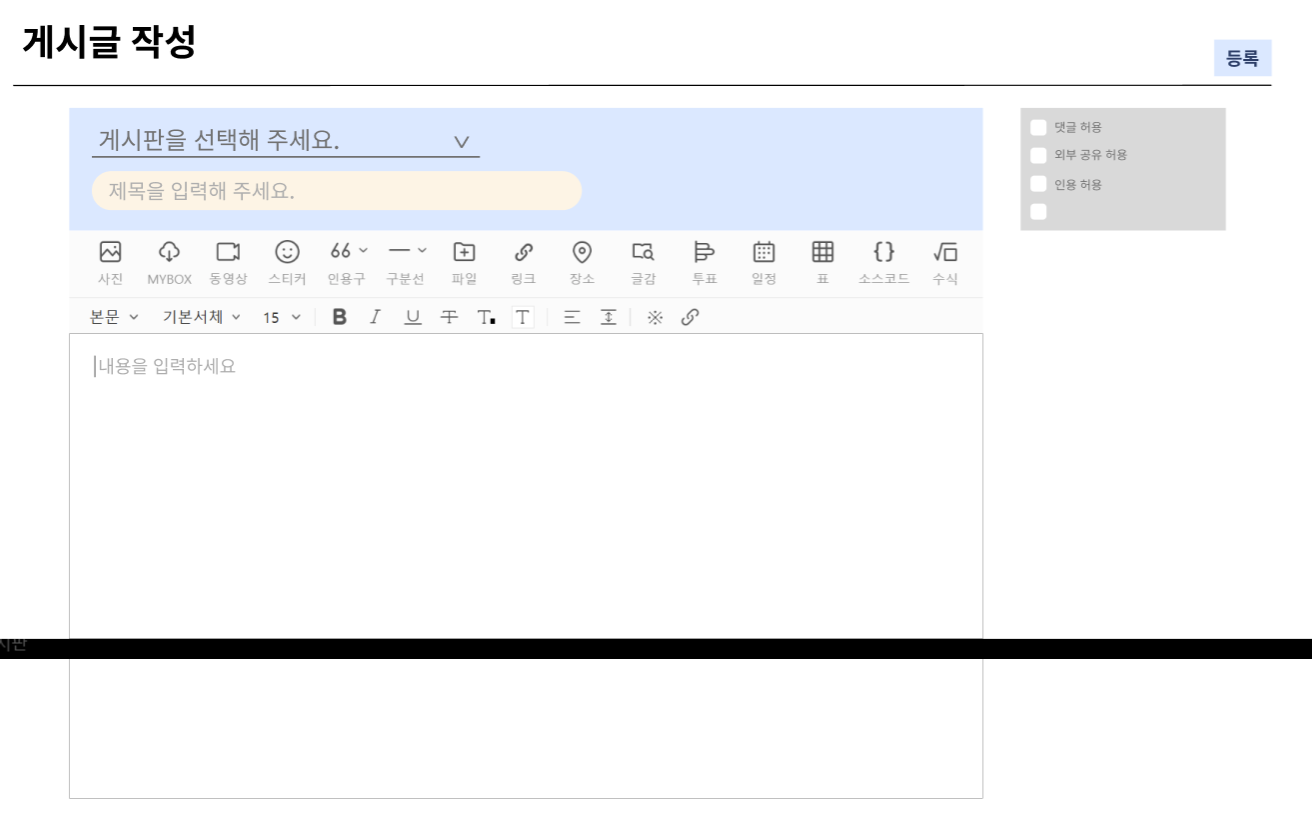
이걸 생으로 만들어볼까 하고 찾아봤는데
https://www.youtube.com/watch?v=xdj0xrS_FTE&t=915s
이 영상을 보고 포기했다. 깊은 프론트 개발 경험이 없고 이번 프로젝트에 저걸 구현 할만큼의 시간을 쏟을 수도 없기 때문이다.
그럼 남은 방법은 오픈소스 API를 활용하는 것이다.
후보는 4개로 추렸다.
1. NAVER SmartEditor2
https://github.com/naver/smarteditor2
GitHub - naver/smarteditor2: Javascript WYSIWYG HTML editor
Javascript WYSIWYG HTML editor. Contribute to naver/smarteditor2 development by creating an account on GitHub.
github.com
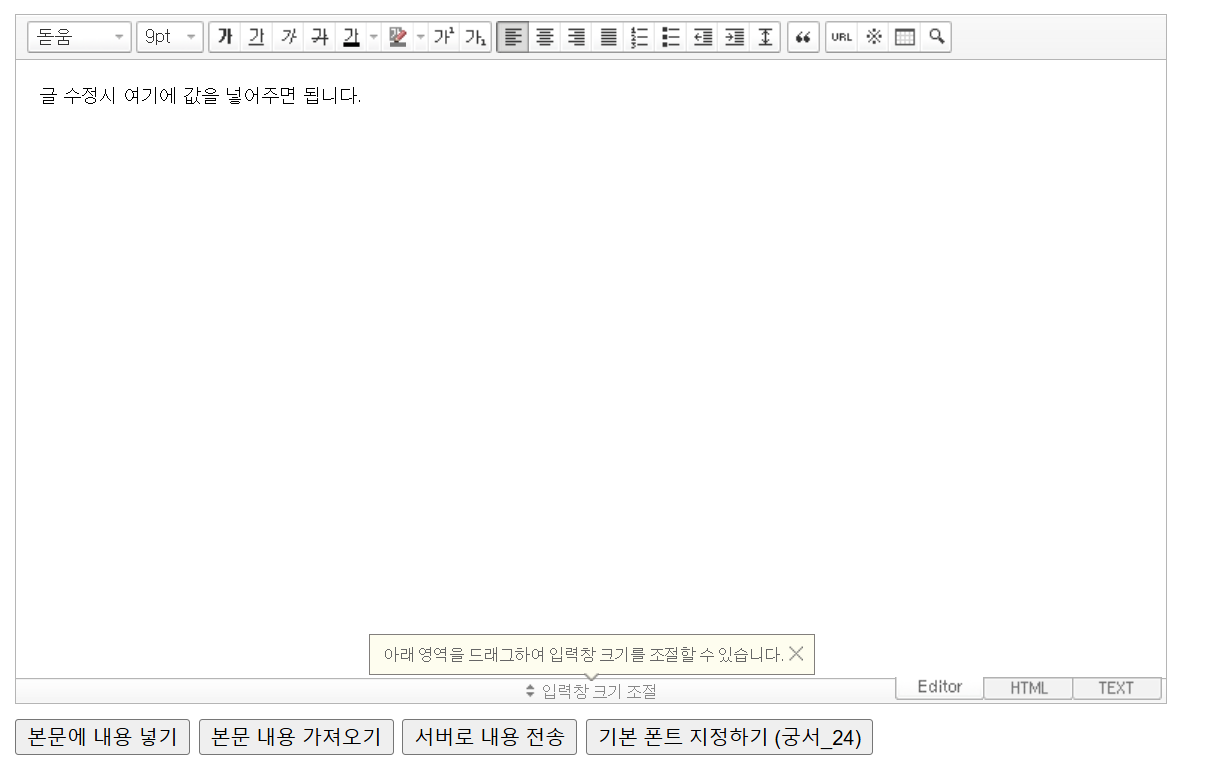
2. TOAST UI Editor
https://ui.toast.com/tui-editor
TOAST UI :: Make Your Web Delicious!
TOAST UI is an open-source JavaScript UI library maintained by NHN Cloud.
ui.toast.com
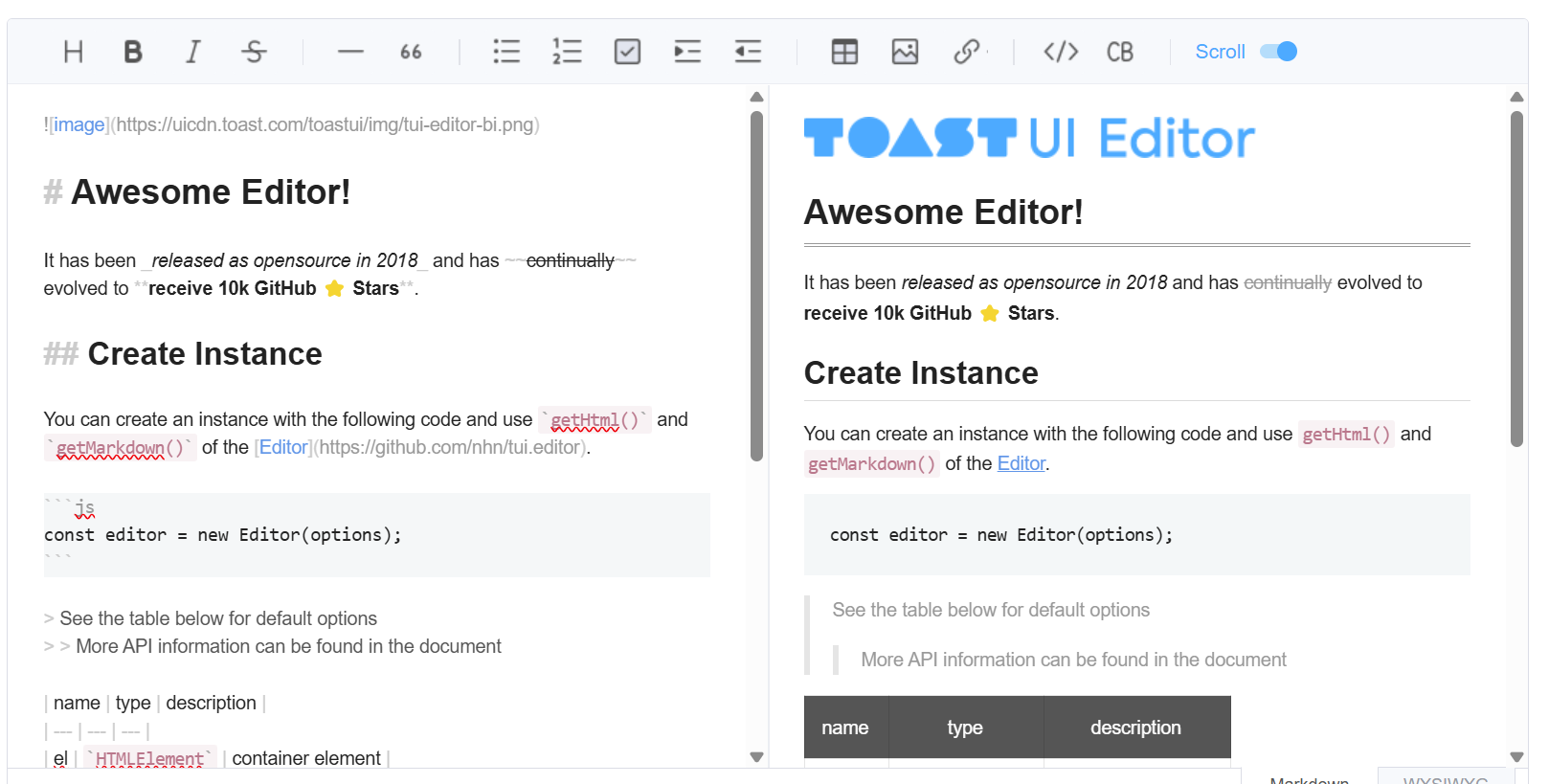
3. CKEditor5
WYSIWYG HTML Editor with Collaborative Rich Text Editing
Rock-solid, Free WYSIWYG Editor with Collaborative Editing, 200+ features, Full Documentation and Support. Trusted by 20k+ companies.
ckeditor.com
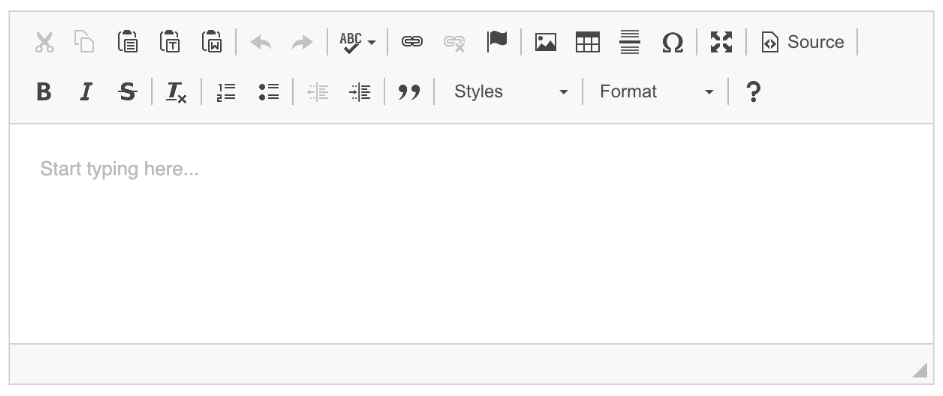
4. tinyMCE
The Most Trusted & Feature-rich WYSIWYG Rich Text Editor | TinyMCE
Elevate your web development with TinyMCE's WYSIWYG Rich Text Editor. Trusted by 1.5M+ developers, with AI-powered tools and seamless integrations.
www.tiny.cloud
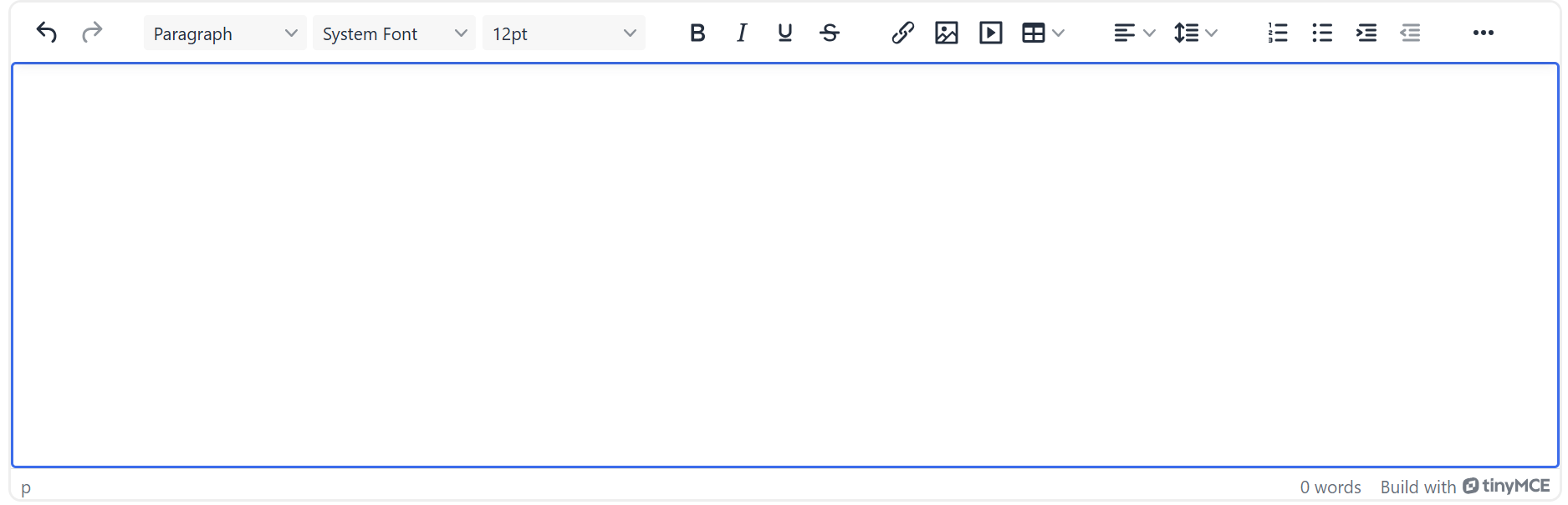
일단 1번은 너무 못생겨서 배제
2번은 내가 원하는 글꼴 변경 기능이 없어서 배제했다.
3번, 4번이 남았는데
처음엔 UI 깔끔하고 문서 잘돼있으면서 기능까지 많은 CKEditor를 사용하기로 결정했다.
CKEditor는 홈페이지에 빌더가 있으서 내가 원하는 기능을 편리하게 선택할 수 있다.
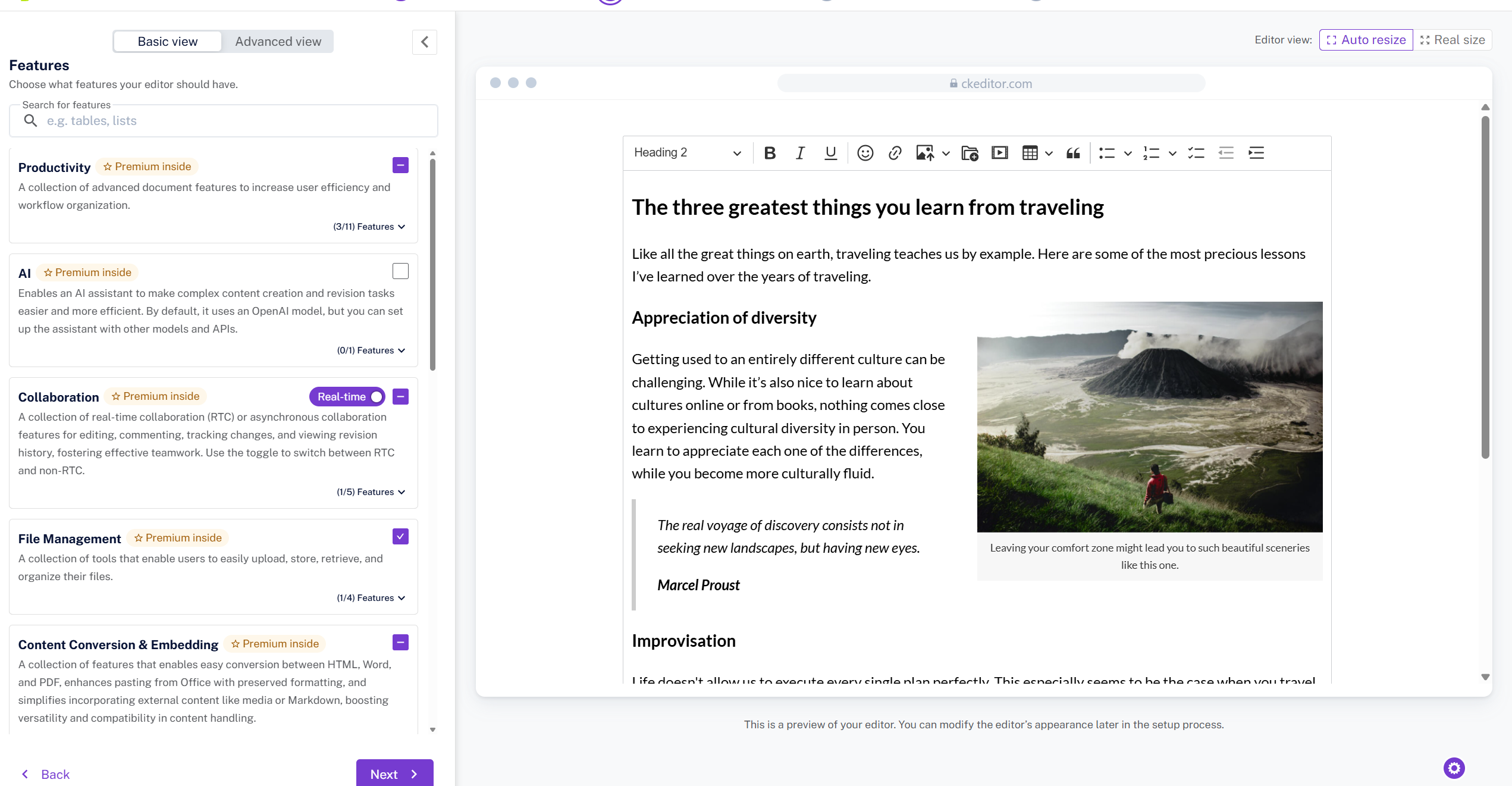
그 중 Premium이라 돼있는 부분은 유료이니 저것만 빼고 사용하면 되겠거니 생각하고 페이지를 구현했는데...
console에 무료 버전은 배포 전까지만 사용 가능하다는 메세지가 뜨는 것이다..! (사진은 없다..)
충격을 받고 찾아보니 배포환경에서 사용하려면 유료 라이센스를 구매하라는 안내가 숨어있었다..
이 프로젝트에는 돈을 쓰지 말자고 팀원들과 무언의 합의를 한 상태여서 나는 다른 방법을 찾아볼 수밖에 없었다......
그래서 선택한 tinyMCE Editor.
찾아보니 CKEditor와 함께 가장 많이 쓰이는 웹 에디터 API라고 한다. 심지어 완전 오픈소스여서 배포까지도 무료로 가능하다고!
사용법도 간단하다.
The Most Trusted & Feature-rich WYSIWYG Rich Text Editor | TinyMCE
Elevate your web development with TinyMCE's WYSIWYG Rich Text Editor. Trusted by 1.5M+ developers, with AI-powered tools and seamless integrations.
www.tiny.cloud
위 홈페이지에 들어가서 로그인을 하면 바로 아래와 같은 페이지로 이동되는데
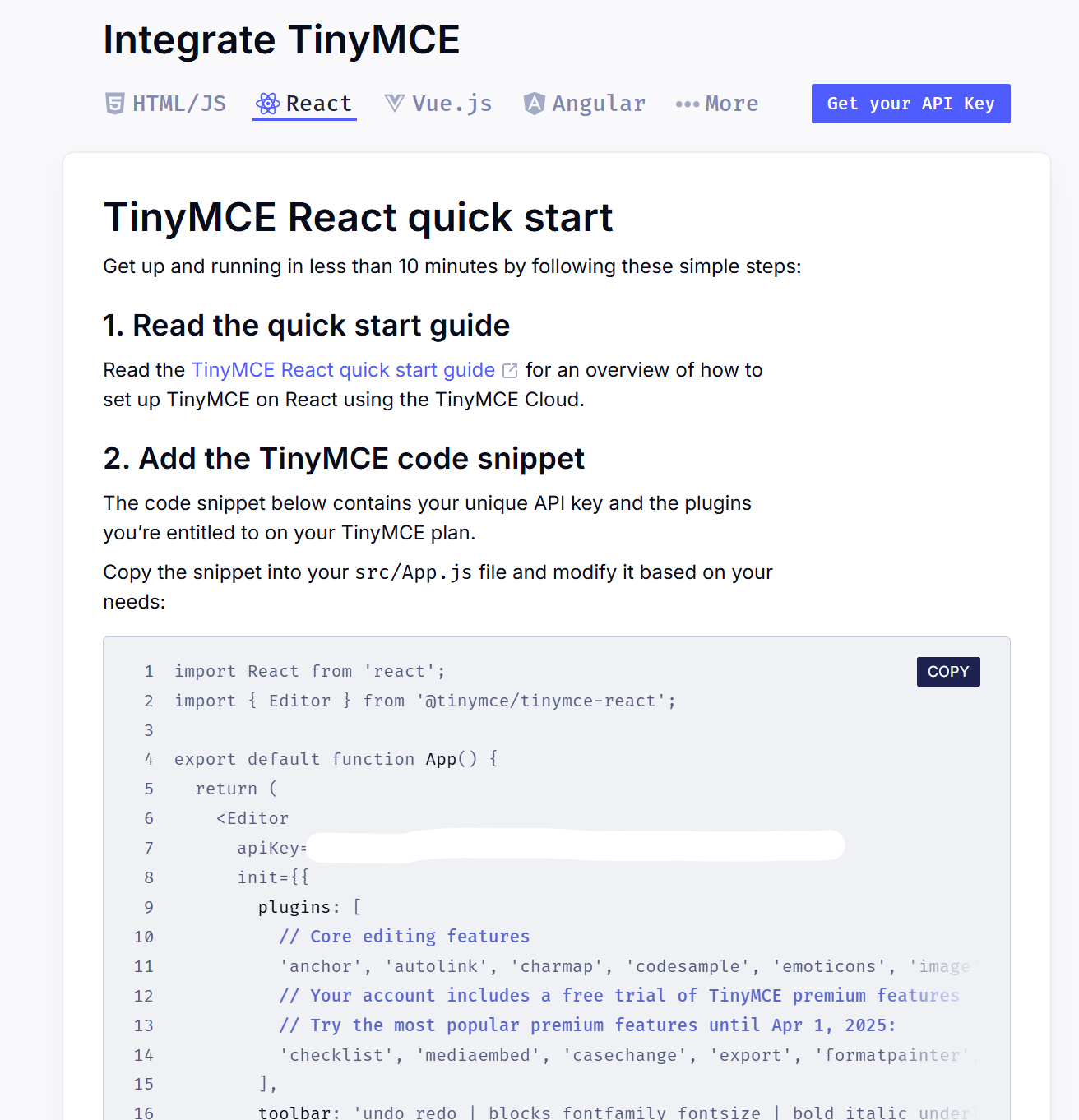
자기가 사용중인 개발 환경을 선택하면 api 키를 포함한 코드를 만들어준다.
나의 경우엔 react를 사용해서 컴포넌트로 쓰기위해 components 폴더에 넣어줬다.
        plugins: [
          // Core editing features
          'anchor', 'autolink', 'charmap', 'codesample', 'emoticons', 'image', 'link', 'lists', 'media', 'searchreplace', 'table', 'visualblocks', 'wordcount',
          // Your account includes a free trial of TinyMCE premium features
          // Try the most popular premium features until Apr 1, 2025:
          'checklist', 'mediaembed', 'casechange', 'export', 'formatpainter', 'pageembed', 'a11ychecker', 'tinymcespellchecker', 'permanentpen', 'powerpaste', 'advtable', 'advcode', 'editimage', 'advtemplate', 'ai', 'mentions', 'tinycomments', 'tableofcontents', 'footnotes', 'mergetags', 'autocorrect', 'typography', 'inlinecss', 'markdown','importword', 'exportword', 'exportpdf'
        ],
기본 코드에 들어있는 플러그인은 2개로 분류돼있는데 위에는 무료 플러그인, 아래는 유료 플러그인으로 한달간만 무료로 사용가능하다.
무료 플러그인만 사용해도 대부분의 기능을 구현할 수 있기 때문에 나는 무료 플러그인만 사용하였다.
import { useState, useEffect } from "react";
import { Editor } from "@tinymce/tinymce-react";

const apiKey = import.meta.env.VITE_TINYMCE_API_KEY || "no-api-key";

export default function TinyEditor({ onEditorChange }) {
  const [content, setContent] = useState("");

  return (
    <Editor
      apiKey={apiKey}
      value={content}
      onEditorChange={(newContent) => {
        setContent(newContent);
        if (onEditorChange) {
          onEditorChange(newContent);
        }
      }}
      init={{
        menubar: false,
        resize: false,
        plugins: [
	"autoresize",
	. . .
        ],
        toolbar:
          "undo redo | blocks fontfamily fontsize | bold italic underline strikethrough | link image media table | addcomment showcomments | spellcheckdialog typography | align lineheight | numlist bullist indent outdent | emoticons charmap | removeformat",

        min_height: 400,
        max_height: 800,
        autoresize_bottom_margin: 10,
      }}
      initialValue=""
    />
  );
}
내가 추가로 설정한 부분을 설명하자면
OnEditorChange는 에디터에 작성한 내용을 쏴주는 함수이다.
참고로 console.log로 내용을 보면 html 형식으로 출력된다.
menubar:false
메뉴바를 없애는 옵션으로

이걸 없애는 옵션이다. 게시판에는 필요 없기에.
resize: false
입력창 크기를 임의로 조절 못하게 막는 옵션이다. 이걸 안하면 사용자가 마우스로 입력창 크기를 조절할 수 있다.
autoresize
min_height: 400,
max_height: 800,
autoresize_bottom_margin: 10,
콘텐츠 양에 따라 박스 크기를 조절하는옵션
넘치면 박스의 크기가 커지고 콘텐츠를 지우면 다시 작아진다.
최소 크기는 400, 최대 크기는 800
800 이상부터는 스크롤이 생긴다.
import TinyMCEEditor from "../../../components/Editor/TinyEditor";

<TinyMCEEditor onEditorChange={setContent} />
이제 이걸 이렇게 불러와서 사용하면 끝.
setContent에 사용자가 입력한 내용을 받아오게 된다.
결과물
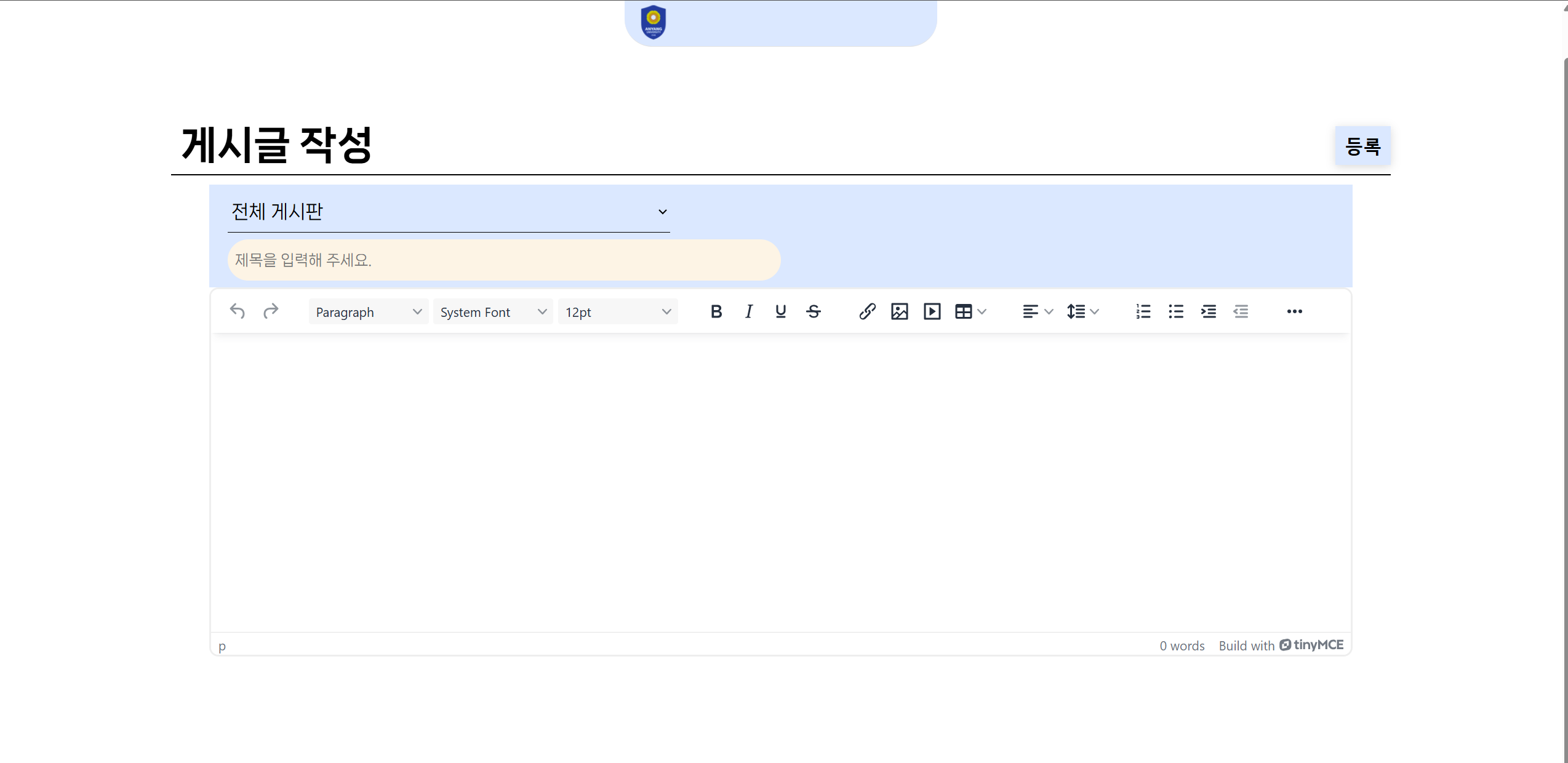
추가적으로 이미지 처리를 해야 하는데 이건 나중에 또 적으러 올 수도 있고 안올 수도 있다.
'개발 지식 > React' 카테고리의 다른 글
| 포트폴리오 웹사이트에서 이력서 PDF 자동 생성하기 (0) | 2026.02.13 |
|---|---|
| 포트폴리오 사이트 미디어 최적화하기 (0) | 2026.02.08 |
| 나만의 개발자 포트폴리오 웹사이트 제작기 (0) | 2025.12.10 |
| React에서 컴포넌트의 css 파일이 적용될 때 (0) | 2025.03.08 |


